MacOS, Slippi, and streaming
How to start streaming your melee tournaments using MacOS & Slippi Mirroring.
Prior to COVID-19 in-person Melee tournaments were streamed using either the Slippi Mirroring Beta or a capture card. A lot has changed since then and I wanted to find the best option for streaming the local I run, The Durham Dojo. Resources are limited so I can't afford buying a Windows laptop just for streaming the tournament, but I did have an old Macbook Pro lying around, and I wanted to see if it was a viable option. After some tinkering and workarounds, I'm happy to share a guide on how you can get started. Here's what you'll need:
- A computer running MacOS with a wifi connection (I'm on MacOS 12.4)
- Slippi Launcher, Streamlabs, and Blackhole installed
- A Wii with the latest version of Slippi
- Ethernet cord
- USB to Ethernet adapter (RJ45 LAN Wired Adapter)
- A dongle (I needed one as I only have USB-C ports on my Macbook Pro)
The first step is letting your Wii use the internet from your Mac. Using a wifi connection on your Mac is fine (though wired is always preferred). We want to avoid the Wii using a wireless connection as Slippi mirroring won't have the greatest results. Here's how you can enable internet sharing from your Mac:
- Open "System Preferences"
- Go to "Sharing"
- Enable "Internet sharing"
- Check off "USB 10/100/1000 LAN" & "Thunderbolt Bridge"
Now on your Wii go too your consoles settings and find the internet option. From here, I removed all my wireless connections just to be sure. Configure the new wired connection and let it run the connection test. It should work at this point. To verify that it's working start a game against a CPU in Melee, then open the Slippi Launcher, go too the Mirroring tab and your console connection should show. If it doesn't, try manually adding the connection (you can find your Wii's IP from your routers web page).
Here's a diagram of what everything should look like:

Ready for some tomfoolery? Let's get started on setting up the stream. Assuming you're familiar with Streamlabs, create a new scene. Now you're probably thinking "I create a new window capture source, set the capture window to the Dolphin window, and voila!", WRONG. When using a window capture source in Streamlabs the performance is terrible, you will get stutters and frames drops. Instead you have to do the illogical thing of creating a display capture source for your whole screen, and cropping it down to fit the Dolphin window. Here's what my settings look like:
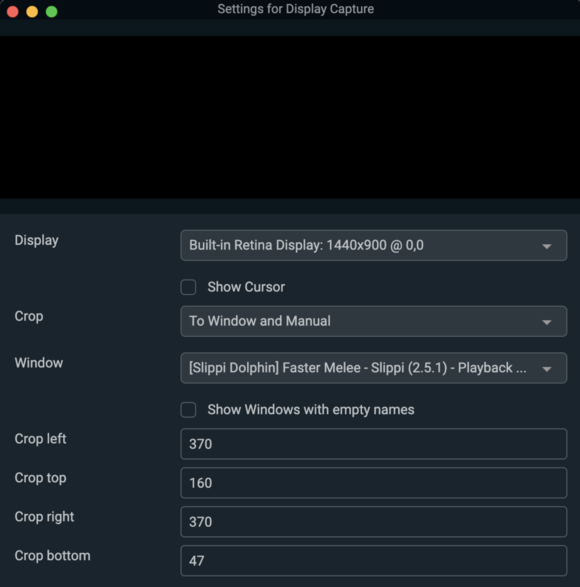
There's a few quirks to note about this:
- You have to have Dolphin and Streamlabs on the same desktop and windowed. So no fullscreen or having them on different desktop spaces.
- If you unfocus the Dolphin window the capture source will show whatever is on the screen. Therefore unless you can figure out a way to automatically switch sources when the window is unfocused, I recommend not touching things once it gets started.
Awesome, we're now capturing our gameplay! But you've probably realized there's no audio. In order to get audio working, we need to configure Blackhole (allows other applications to pass audio to other applications with minimal latency). I followed this guide by Streamlabs which I also recommend following, but here's a summary of what you need to do:
- Install Blackhole
- Press
command + spaceto open spotlight search, then search for "audio midi setup" - Click the Plus (+) button in the bottom left corner and click Create Multi-Output Device
- Check the box next to BlackHole, the Built-in Output, and any other devices you want to use for monitoring. Important: the built-in output needs to be ABOVE BlackHole in the list. If it’s not, uncheck and re-check the box under “Use” to alter the order.
- Right-click on the Multi-Output Device and select “Use This Device For Sound Output”. Now all desktop audio will now be output to both your built-in device as well as the virtual BlackHole device.
- Create a new audio input source in Streamlabs, and set the device to "BlackHole 2ch"
Now you should have gameplay audio! The only quirk of this is that you cant mute your Mac's speakers, so you will have to hear the gameplay. If you have any questions or troubleshooting, check out BlackHoles Github Wiki & FAQ.
That's it! As I continue using this setup and solving issues, I'll be sure to update this document. If you have any questions feel free to reach out.